
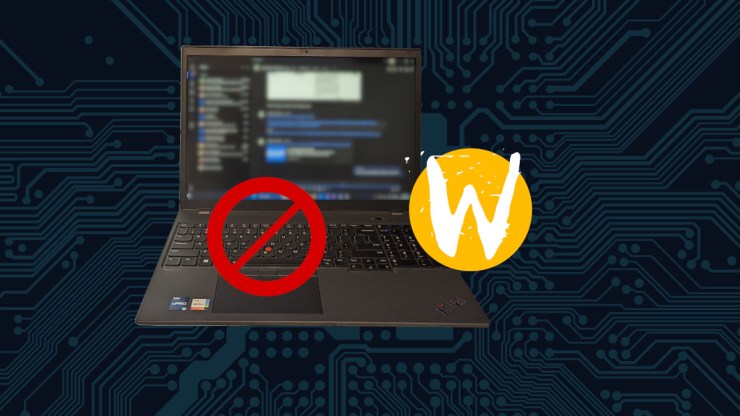
Sometimes, hardware breaks and you have to make a modification in software to work around it. Here is one neat little trick I am using, temporarily, for a ThinkPad TrackPoint problem.
These directions are going to be directed towards an openSUSE system because, that is what I primarily use but I am pretty certain that this is pretty universal with any Wayland capable machine.
Note: this probably works in X11 too. The point is, this solution works in Wayland.
Background
I have a ThinkPad P16s where the trackpoint has decided it wasn’t going to work properly. So bad, in fact that mouse or trackpad input was being overridden by the trackpoint so perniciously that I could only interact with the computer via keyboard. Until a Lenovo technician can arrive to install the new keyboard, I will have to disable the TrackPoint to make the computer usable.
To the Terminal
This works, to my understanding, as of Linux Kernel 5.11, input devices have an inhibited property. This can easily be toggled with an echo command, but first, you need to find where the device exists.
This will list out the various devices:
cat /proc/bus/input/devices | moreLocate the the specific device, in my case it is the TPPS/2 Elan TrackPoint
I: Bus=0011 Vendor=0002 Product=000a Version=0063
N: Name=”TPPS/2 Elan TrackPoint”
P: Phys=isa0060/serio1/input0
S: Sysfs=/devices/platform/i8042/serio1/input/input4
U: Uniq=
H: Handlers=mouse0 event1
B: PROP=21
B: EV=7
B: KEY=70000 0 0 0 0
B: REL=3
The key line here is S:, this tells me where the device lives and where I have to toggle the inhibit property. As root, to inhibit the TrackPoint and make the computer usable run this:
echo 1 > /sys/devices/platform/i8042/serio1/input/input4/inhibitedImmediately, this will allow me to use my computer once again. The TrackPoint will no longer be sending signals to make the computer unusable but the downside here is, I really like that TrackPoint and now I can’t use it.
Until the replacement keyboard comes in, this will be necessary to make the computer functional. This is only good until the computer is rebooted. The inhibited flag will be set back to 0 at boot.
If you wish to set the flag back to zero to reactivate the device, that can be done like this:
echo 0 > /sys/devices/platform/i8042/serio1/input/input4/inhibitedFinal Thoughts
I am sure that there is some more “intuitive” GUI way of doing this in Windows which, unfortunately does not exist in Linux for this function, at least, I haven’t seen it. It does seem like one should be able to do this without having to be the root user but I can also see why you would want that too.
This little problem with the Lenovo made for another opportunity to learn a thing and I am grateful for that. So many neat things to learn in Linux.


Leave a Reply