
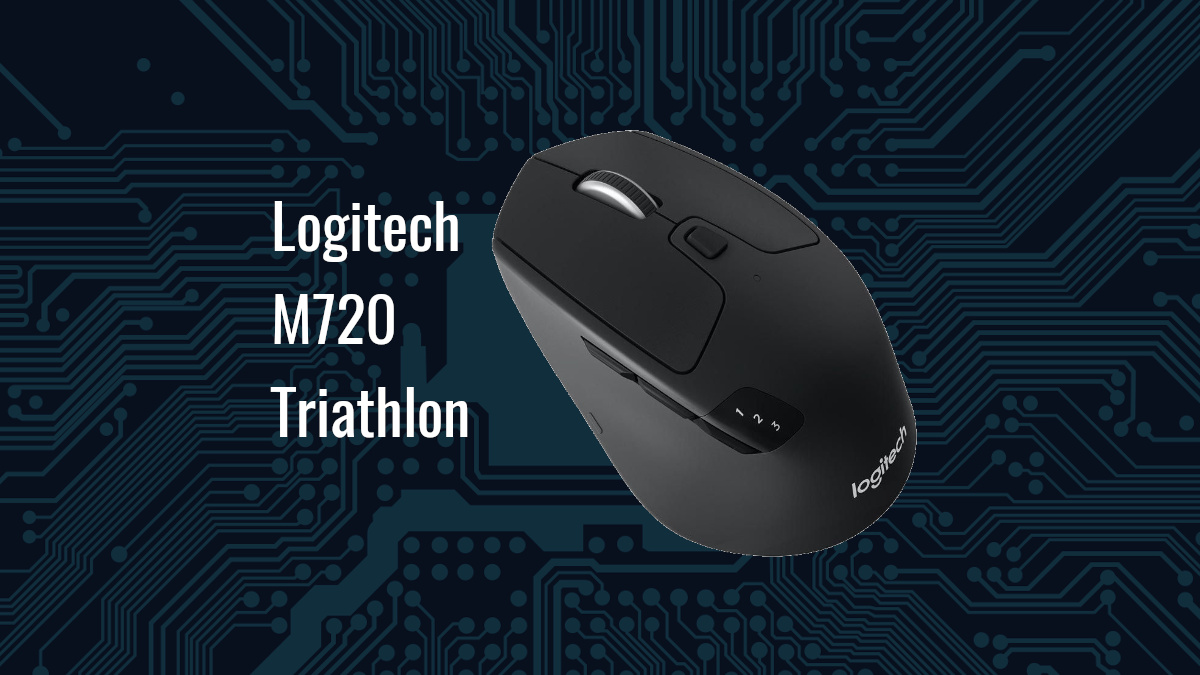
Historically, I have not been particularly picky about my mouse. I’ve largely been happy or shrug and indifferent about the mouse I use with the greatest issue how accurate it tracks and that it is reliable. It was about a decade ago that I insisted on my mouse being Bluetooth but that was the extent. I have noticed that not all Bluetooth mice are the same, even from the same manufacturer. After getting a nice mechanical keyboard (article on that at some point) I decided I needed a better mouse and it wasn’t until my boss shared with me his mouse choice that I had to upgrade

Bottom Line Up Front: The Logitech M720 Triathlon is the best mouse I have used to date. It’s multi-device, bonus buttons and rapid Bluetooth connection makes it a premium mouse. This mouse is the one I recommend 10 times out of 10 whether you are running Linux or some other operating system.
Background
I am a digital nomad and the vast majority of my work is done on the computer, specifically on my Framework Laptop 13. I operate in multiple locations and I am a digital nomad quite often. Having a good mouse when working on spreadsheets, file management or managing systems makes the work more enjoyable and efficient. I had been largely unsatisfied with the mouses (mice not sure here) that I have been using with either slow Bluetooth connections or actually interfering with other Bluetooth devices. The shape had also become a bit of an issue too. I was leaning towards the smaller mice (thinking about this… a wireless mouse should be a hamster since hamsters don’t have a tail but again not relevant to this article) but I do have larger hands so a small mouse is less comfortable to use long term.
I casually complained about this at work and my boss shared with me this Triathlon mouse that he has been using which he stated he uses with different machines. With a tap of a button, the mouse will connect to a different device or the included dongle. I was sold, I bought one that day.
Use and Features
Primarily, I use this mouse with my Framework Laptop 13 it is everything I want a mouse to be. The weight is right, the ergonomics are right and the extra buttons are spectacular. The weight required to press a button is just right for being able to rest my hand on the mouse without accidental clicking. The scroll-wheel acts as a middle-button but also, pressing left or right on it can be used to scroll sideways on spreadsheets, graphics editing software and probably many others.

There are four additional buttons just above where the thumb rests. The two most forward buttons I use for moving forward and backward on browsers. The third is for switching paired devices. Since it is out of the way of the business end of the thumb, there is little risk of accidentally pressing it.

Last button is hidden, of sorts, it is at the base of the mouse where it flairs out. This button, I use most as I have tied this with my clipboard manager. If I am ever without my mouse now, it is like I am working with one finger tied behind my back… or something. There are more times than not I am cycling into my clipboard manager to pull some recent copy to paste into a thing. Sure, I can use Meta+V to get the same thing but it is just not as convenient as the press of a button at my thumb.


The battery life on this mouse is just as they claim. The claim is that the AA battery that powers it will last 2 years. I am at year 1 of using it and it is at 55% according to the Plasma Desktop Power Management system. At first I was unenthused by its lack of recharging ability but 2 years, no recharging, just using basically glosses right over that design choice. I bet that was a point of discussion by the engineering and marketing folk during the product design process. Overall, I am quite happy with the choice here.

Multi-Device
The multi-device feature is simply fantastic on so many levels. Preset 1 is set to my laptop and the 2nd one is sometimes floating but currently is set to my SteamDeck. I last used it along with a Bluetooth keyboard on the SteamDeck but I have also used it with my Bazzite running One X Player.
I have also tested the mouse with other machines and use the 2nd preset for Bluetooth pairing for rare occasions. The 3rd preset is paired with the dongle. By default, the mouse comes paired with the dongle at preset 1 but that is not how I want to use the mouse. This is very convenient when I need a mouse for a bit on any random machine, also the One X Player since it has a USB-A port on the top of it. Really, there are no limits to the number of “use real quick” opportunities that present themselves to a nerd where the mouse comes in handy.
Linux-specific Wins
Logitech isn’t great about supporting Linux with their configuration tools. They don’t provide any way to configure the mouse in Linux directly but there are workarounds. One, you can use Winboat and their software to configure it but I didn’t do that. I went a different route. I am using Input Remapper (also deserves an article) to set the definition of the hidden thumb button.

The other buttons can be configured in plasma itself

If you select Configure Extra Buttons, you can then assign specific actions to the extra buttons on the mouse. I don’t have anything set in stone yet but I do have refresh (F5) and the Print button for opening up Spectacle to take screen shots.


It’s only the thumb button that cannot be specifically configured in Plasma. Perhaps changing the configuration of the button with the Logitech tool could omit the need for using Input Remapper
Plasma’s Power Management system also reports the remaining battery charge of the device as well. I am interested in seeing how long the battery lasts. I will edit this article when I get to the end of the battery but my results will likely vary form most for reasons explained later.
I did run into a slight issue following the purchase of M720. The mouse that I was using in my workplace office began to really annoy me, not just a little, but a lot. I realized that this mouse has shifted my expectations significantly. As a consequence, I had to purchase one that I keep just at my workplace office. I could have taken my mouse back and forth but really found that to be inconvenient. I also decided to pair that mouse in the office with various machines there too.
Since my mouse time is split between two M720s, that 55% power remaining figure may be a bit flawed as a gauge for the accuracy of a AA battery lasting two years. Yes, after one year it is 55% but there are days each weak that it doesn’t get much use at all so the real number of where it should be is not totally clear. What is certain, the battery life is far longer than I expected on a mouse of this feature set. Even if it was only a 12 to 18 months of battery life, it is still fantastic. The fact that I’m projecting to get near that 24 month mark is absolutely unreal. Truly, we are living in a great era for awesome tech!
Final Thoughts
When you find and use a piece of hardware that really hits on all cylinders and makes time behind your computer a little more efficient, there is not a shred of buyers remorse. The $40 spent on this was well worth it. The additional $40 invested into my workplace office was also well worth it.
This mouse is peek productivity with the ergonomics, pushing the mouse wheel left or right for horizontal scrolling spreadsheets or graphic editors like Gimp. The side the additional buttons for going forward and backward in browsers or pulling up my clipboard manager with the hidden thumb button is also spectacular. This truly is the best mouse I have ever used. Just enough features without being overwhelming.
Who is this mouse for? I would say, anyone that doesn’t need the RGB vomit, wants long battery life and productivity enhancing buttons. If I were to accidentally break or lose this mouse, I would buy another, without hesitation. In fact, as I am thinking about this, I just may buy another one to keep in my lab. The mouse there is rather underwhelming.

The only thing I think that could make this mouse better would be if it had Commodore 64 beige buttons to fit with my 8BitDo keyboard. That would make it even better! Something to think about…
References
https://get.opensuse.org
https://www.logitech.com/en-us/software/options.html#download
Adjusting Mouse Edge Stickiness in KDE Plasma
Leave a Reply