

One of the areas that isn’t as mature as I would like with Wayland has been remote desktop, at least, that was until just a few days ago when I stumbled upon this fantastic project. Although this still in Alpha, it does work but there are some reliability issues.
Bottom Line Up Front: Works but is not entirely stable. When it is working it is very smooth and responsive but in messing around with it, Plasma crashed and everything that was running also shutdown. This reveals a few issues that yet need to be worked out with the resilience of the Wayland Desktop and whatever mechanisms are being used to make this remote desktop session work. That said, it works and when it isn’t crashing it is the smoothest RDP experience I have yet had.
Edit: There have been some changes so I have made some updates accordingly.
Installation
I don’t want to just eliminate the old information so I am going to add the new information to this article on how to get RDP working in openSUSE Tumbleweed.
New Way
KRDP is now baked into Plasma6 and works exceptionally well. That is, it works well enough that it’s not crash as it was in the Alpha release. To install the KRDP components into Plasma simply run this in the terminal:
sudo zypper install krdp6You will have to have the h.264 drivers installed to allow the video compression algorithms to stream your desktop to another machine. The current method I am using to get these codecs is to install all of them using OPI.
opi codecsMore OPI here for openSUSE distributions.
Within the Plasma system settings, go to the Remote Desktop module. Toggle “Enable RDP server and add a user.

You will also have to ensure that your firewall rules allow for RDP traffic as well.
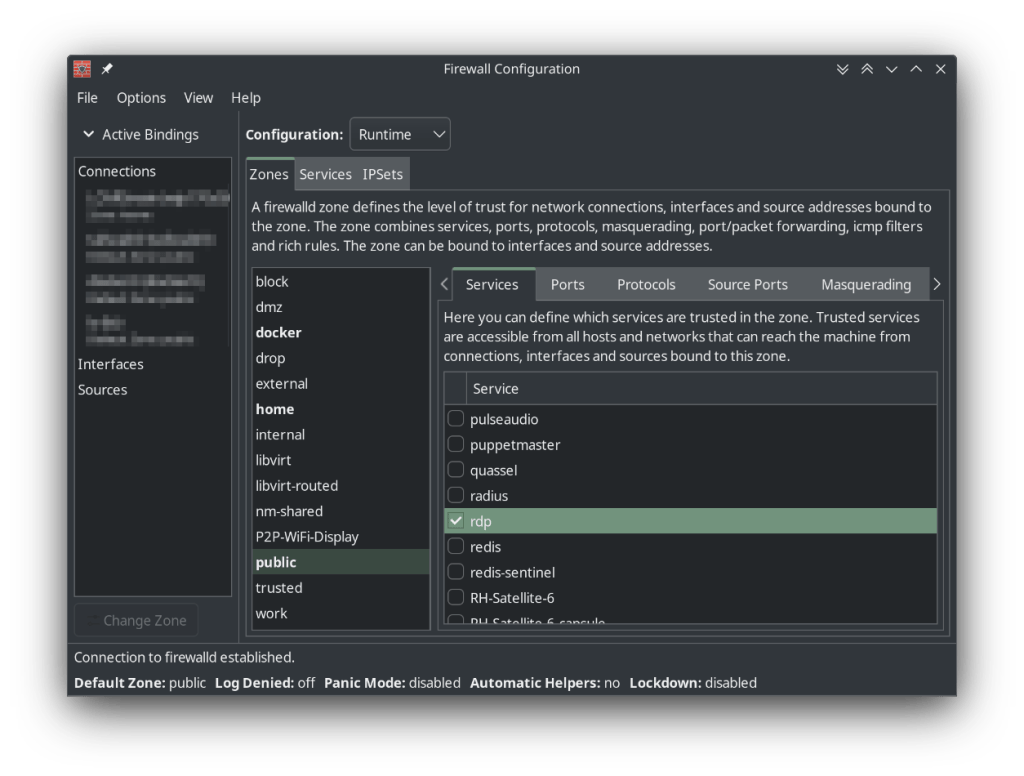
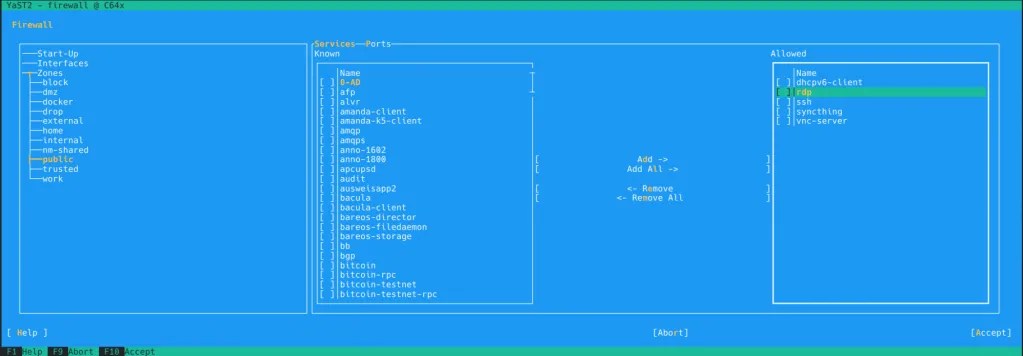
Then you can connect to your Linux machine, running Plasma Desktop with the app of your choice.
Old Way
Install Flatpak from here, in an alpha stage
I double-clicked to install using Discover which didn’t cause me any issues. Sure, the information is a bit light but this is an alpha release so no expectations there.

Usage
In this section too, I am going to leave the old way as well as show the new way of making an RDP connection.
New Way
As seen earlier, the configuration is in the Plasma System Settings. This will deposit an icon in the system tray of your desktop which is convenient if you would like to disable RDP quickly.

From there make your connection and you are off to the races but I should provide some notes here as well. Yes, the connection works but seemingly right now, only the first time. I have to restart the server for a subsequent connection. I have to try to understand what is going on here yet.
With multiple screens, the RDP client doesn’t always display everything as you would like but if you have a single display, this seems to work well.
Overall, VNC seems to be the better option over what is currently available in Plasma for this particular task. I am getting more hopeful that this will work better in the near future.
Old Way
There is no GUI to work with on this at this time but getting it going is quite simple. Quite simply just enter the following:
flatpak run org.kde.krdp -u {username} -p {password}Just an example as to how I could potentially use this would be like this, verbatim:
flatpak run org.kde.krdp -u cubiclenate -p hes1coolguy!When you run this in terminal, under your user account, you will get this dialog to commit to the sharing of your desktop:

KRDP will leave a little icon in your system tray to show that it active. It has one option within it, to end the RDP Server.

When Kwin_wayland does crash, I log out and back in again just to be sure whatever has gone nutty has been purged. So, it is still in alpha but I view this as fantastic progress towards remote desktop on Wayland. I won’t be using it or relying on it at any level at this time but I will be keeping an eye on it and looking into its development from time to time.
That is really it, if you have used RDP before, it is much like you would expect form any other experience. In full disclosure, this isn’t exactly very stable. I just let it run, not doing anything special and it did end up crashing on me and taking my Plasma session down, exiting all the applications and giving me a nice little notification that Firefox crashed. Nothing else gave me such a notification so that is a bit odd.
Unfortunately, there is no indication when another system connects in the system tray icon. You do get a torrent of information in the terminal upon connection. It includes information about the system that connected, including it’s host name and the like.
Results from Both Methods
I don’t seem to have any issues connecting from Linux to Linux or Windows to Linux with this setup. The issue remains, with both, stability. RDP works but not as reliably as what was experience on X11 or logging into a Windows machine.
What I Like
I’m impressed with the performance. Logging into my Framework from the Windows 11 machine was almost almost perfect. The authentication process was pretty quick and the latency was surprisingly very low.

Plasma desktop effects seen on the little surface book was even smooth. I couldn’t believe it. Everything from sliding to new virtual desktops to the magic lamp effect I like to use for minimizing and restoring windows and even the wobbly effect was rather splendid. Truly, a great experience when it worked.
Initiating KRDP is simple to do. I don’t like the plain text entry in the terminal for the password into the system but it is at least easy to get going. I am sure that this will all be nicely improved over time, perhaps using the user credentials to access the desktop or what not. Regardless. This is easy to get going so for personal use, this is absolutely great. It would be trivial to put this into a startup script for any system.
What I Don’t Like
Not a clean interface to get RDP server running. Usage of terminal but it is very simple. Password would be stored in plane text with whatever mechanism you are using to start running it. It is in Alpha so this will likely be improved
The alpha version crashes the Wayland Desktop. I am not going to give this too much grief because this is a great proof of concept, it does work, it just can’t keep the wheels under it for very long. I’m sure this will get fixed and we will have a fantastic, baked-in, solution for this.
The current version (as of 3rd quarter 2024), works and is nicely baked it but doesn’t work as well as I would like. It doesn’t always show all the screens and re-logins to the RDP server seems to not work reliably. First time, great, second time, not great.
Final Thoughts
Wayland is coming, the momentum is behind it and feature gaps are getting filled. I don’t have a lot of need for RDP server on my laptop but I will be glad when it is available for me to use so I can have graphical remote control into my Linux systems.
This also makes me think, one of my other issues with moving to Wayland from X11 is the lack of the Virtual KVM applications like Barrier and Synergy. This does prove that being able to accept remote keyboard and mouse input is possible and has been done. Hopefully this can make that really cool application awesome again.
The future of desktop Linux looks great and I really look forward to the coming months for all the great developments I will be able to enjoy. This is a great time to be using Linux!
References
https://planet.kde.org/arjen-hiemstra-2023-08-08-remote-desktop-using-the-rdp-protocol-for-plasma-wayland/
KRDP Flatpak Download


Leave a Reply