
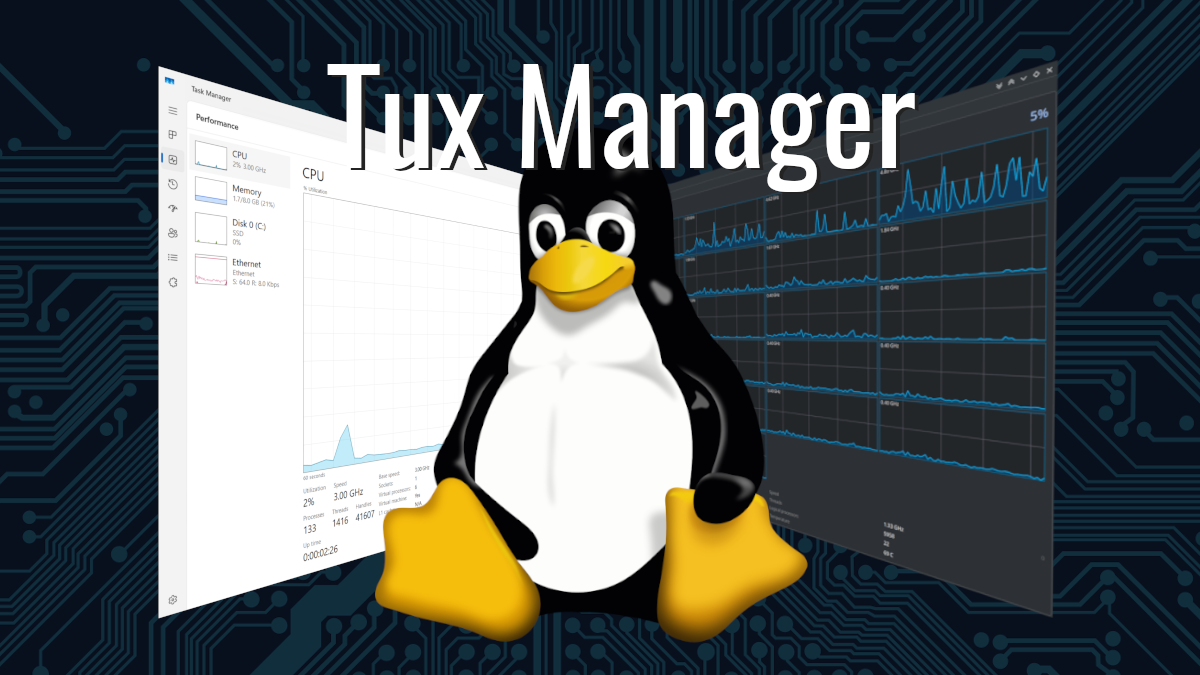
I’m not entirely sure how I stumbled upon it, maybe an email, maybe a Reddit Rabbit-hole but I stumbled upon this rather fascinating project from an industrious developer. In short, this is a clone of Task Manager built using Qt6, so it fits perfectly with my KDE Plasma Desktop.

There is nothing wrong or missing with standard Plasma System Monitor, its perfectly functional, does everything I need it to do and I can easily customize the System Monitor just as I would like but there is something that is uniquely special about Tux Manager.

Bottom Line Up Front: I love Tux Manager, I love that someone has taken the time to make an application that fits perfectly into Plasma that looks and feels like Windows Task Manager for Linux. So much time and care was put into this that it just makes me smile ear to ear.
Installation
Visit the Github page for instructions on how to download and set it up for your distribution. If nothing else, you can install or just run the AppImage version with zero commitment and get this dose of special seasoning for your Linux desktop.
https://github.com/benapetr/TuxManager
For those on openSUSE Tumbleweed you can install it using OPI.
opi TuxManager
It would be nice if there was a Flatpak of TuxManager for ease of installation for the masses.
Use and Exploration
From here, just launch TuxManager and smile at the similarities.

Like Task Manager, you have the process displayed by default. It doesn’t look exactly like Task manager and has similar functionality, but the neat thing is the “Run New Task” is right there

I don’t want to make this a deep dive in the differences between the two but in short, you don’t have this processes table of CPU, Memory, Disk, and Network… exactly. What you do have is a mix of the processes and the details menu in one but not quite the same, close. The neat section that has that Windows Task Manager feel is the Performance Tab. This looks almost identical to the Windows counterpart.
The tab I want to really point out is the Performance tab. This is really very close. They look similar, have the same basic information, obviously there are additional bits like Swap with Tux Manager but when you boil it down, they are quite close.

This Task Manager is running on Winboat on the same Laptop as Tux Manager so there are some missing bits, but look at the similarities!

Final Thoughts
Tux Manager is a fantastic tool. It’s not a replacement for me but I am going to keep it and smile a little. I don’t actually think this is any better than the System Monitor, it actually has fewer features but for someone coming from the Windows world, this would be a more comfortable tool. Really, I just like the work that was done for the aesthetic and I can’t help but wonder what Dave Plumber, the original author of Task Manger, would think of this Linux tool. Would he use it on his Linux Desktops he uses? It’s highly unlikely he would ever read this but I hope that he likes and uses Tux Manager on his Linux desktop.
If you like to play with fun, nerdy bits of software, I highly recommend you check out Tux Manager. Even if you don’t care for the Windows Task Manager or prefer something more like Btop in the terminal than a graphical system monitor, just check it out. Maybe even show your Windows sysadmin at work what you just discovered and see if it at least raises an eyebrow. What a fun application!
References
OPI | OBS Package Installer
https://github.com/benapetr/TuxManager
https://www.youtube.com/c/DavesGarage/videos
https://cubiclenate.com/2024/04/19/btop-terminal-based-resource-monitor/
https://cubiclenate.com/2020/01/09/appimagelauncher-appimage-manager-on-opensuse/
Leave a Reply